What it does
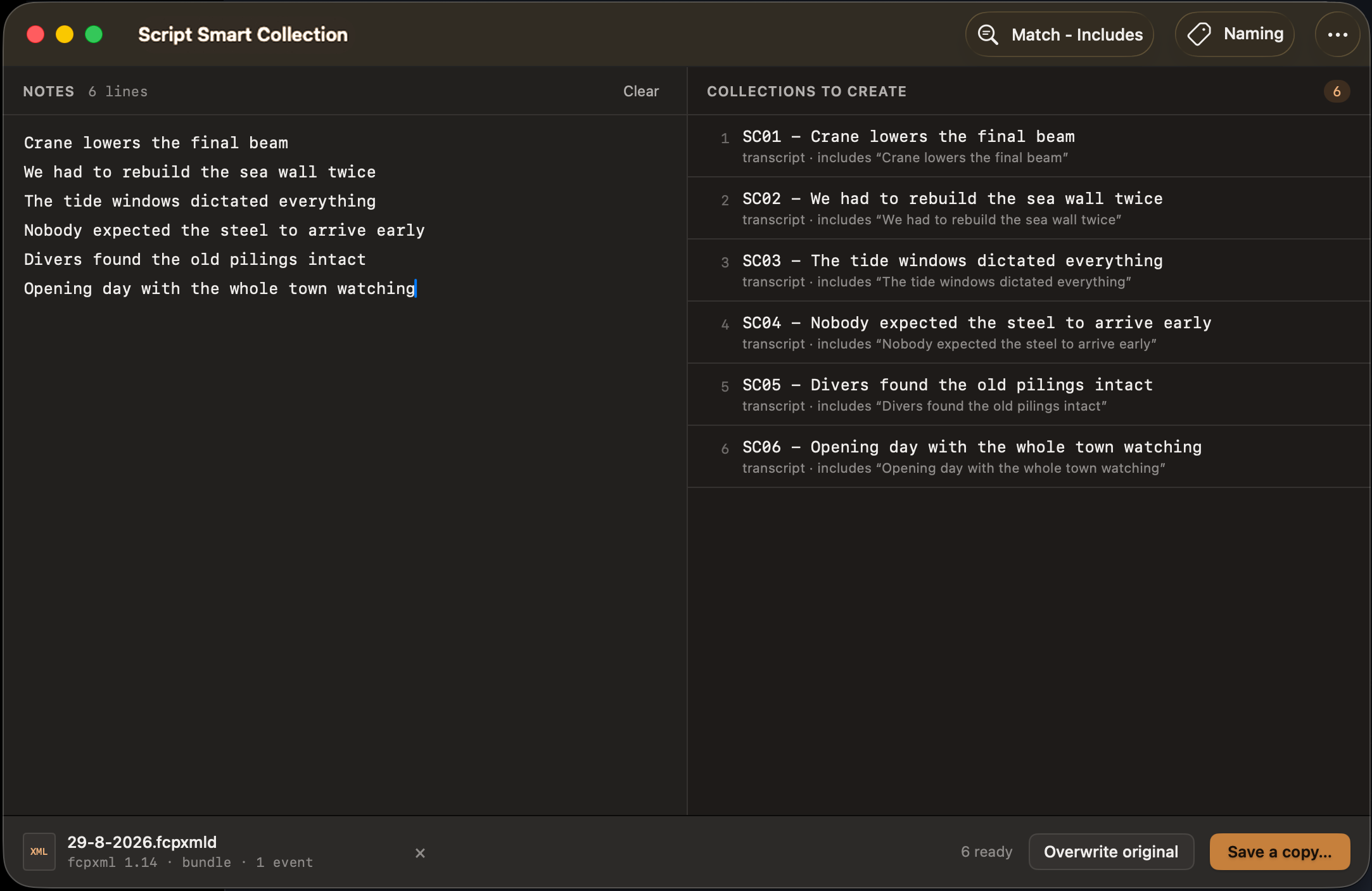
Script Smart Collection turns a list of text notes into Final Cut Pro smart collections. You write one line per collection; the app adds a collection for each line to an exported event, and each one shows the clips whose transcripts match that line.
- One smart collection for every line of notes
- Each collection searches clip transcripts
- A live preview of exactly what will be written
- Match word for word, or with Final Cut Pro’s looser “is related to”
- Your own prefix, numbering and zero-padding
- Works with
.fcpxmlfiles and.fcpxmldbundles - Saves a copy by default, so your original file is left alone
Before you start
Three things to have ready
Script Smart Collection runs on its own, next to Final Cut Pro. It only opens the files you give it.
Transcript search arrived in format version 1.14, so older exports can’t be used.
The collections search transcript text. A clip without a transcript has nothing for them to find.
Step by step
From script to smart collections
Seven steps, about a minute once you’ve done it once. The examples use a documentary about a harbour rebuild, with a handful of lines from its interview notes.
Export the event from Final Cut Pro
The collections are added to an event, so start by exporting one. In Final Cut Pro, select the event in the Libraries sidebar, then choose:
- File
- Export XML…
If the dialog offers an XML version, choose 1.14 or later. Final Cut Pro saves either a single .fcpxml file or an .fcpxmld bundle; both work.
What Script Smart Collection accepts
- What you export An event A project on its own
- XML version 1.14 or later 1.13 or earlier
-
File type
.fcpxmlfile.fcpxmldbundle
Load the event
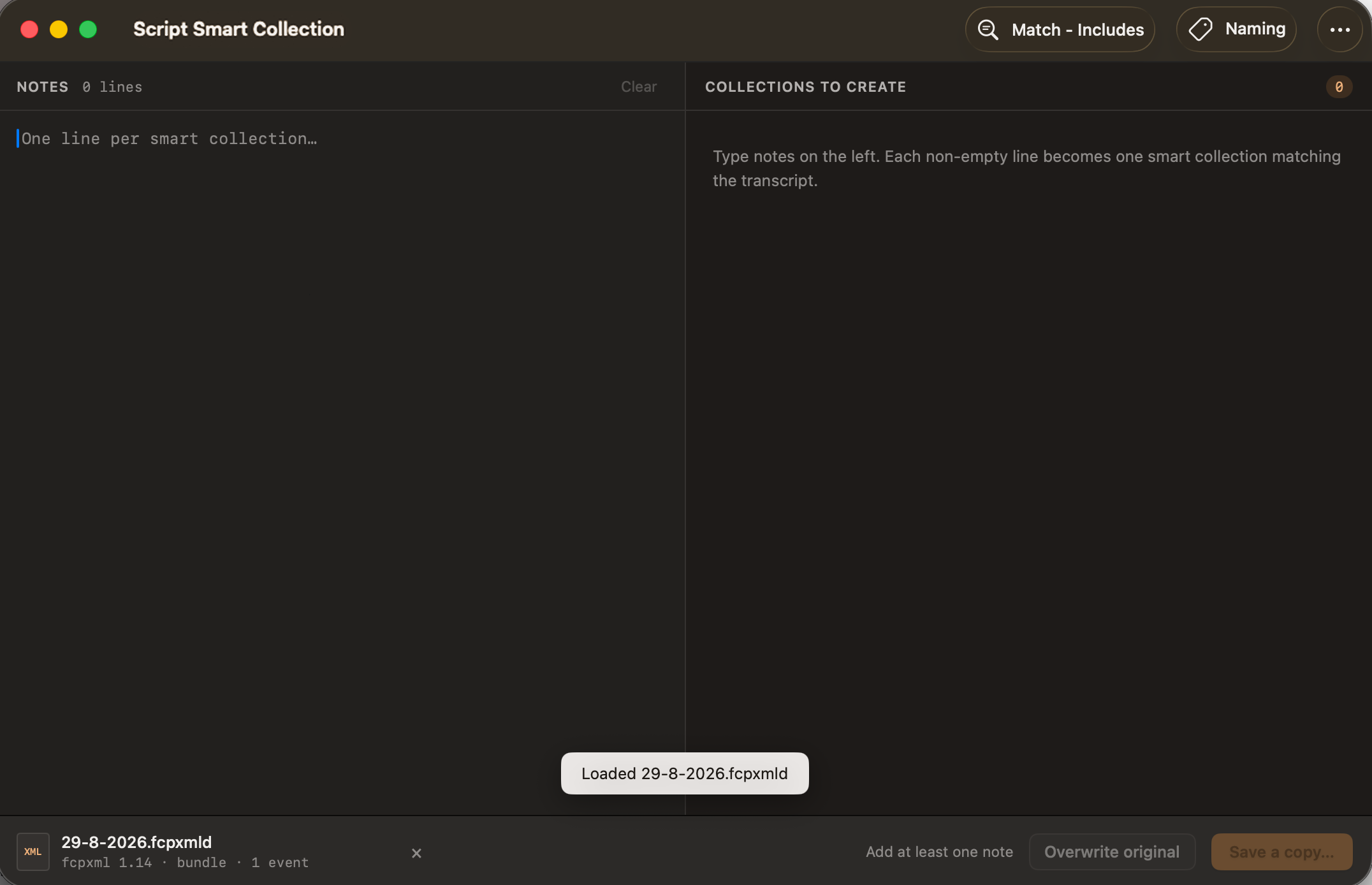
Drag the exported file anywhere onto the Script Smart Collection window, or click Browse… in the footer (⌘O) and choose it.
A “Loaded …” message confirms it, and the footer shows the file name, its format version and how many events it holds — for a bundle, something like fcpxml 1.14 · bundle · 1 event. Until you add a note, the status reads Add at least one note.
To switch to another event, drop the new file on the window, or click × beside the file name to unload it first.
Write one note per line
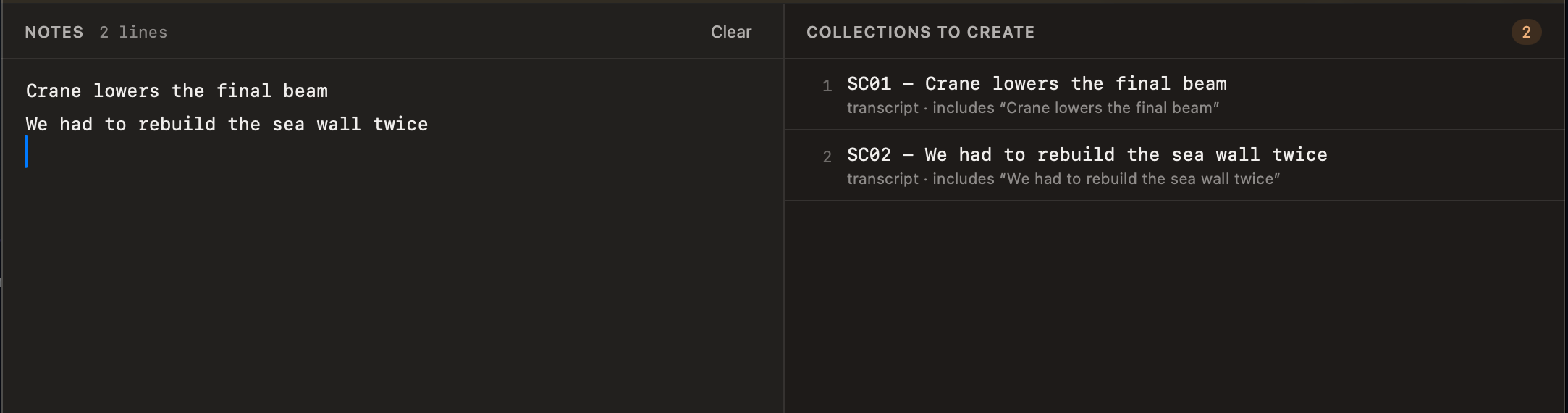
Type or paste your notes into the Notes pane. Every line becomes one smart collection. Blank lines are skipped and extra spaces are trimmed, so you can paste a script or topic list straight in.
The Collections to create pane on the right lists exactly what will be written and updates as you type. The badge at the top is the number of collections you’ll get.
Choose how collections match
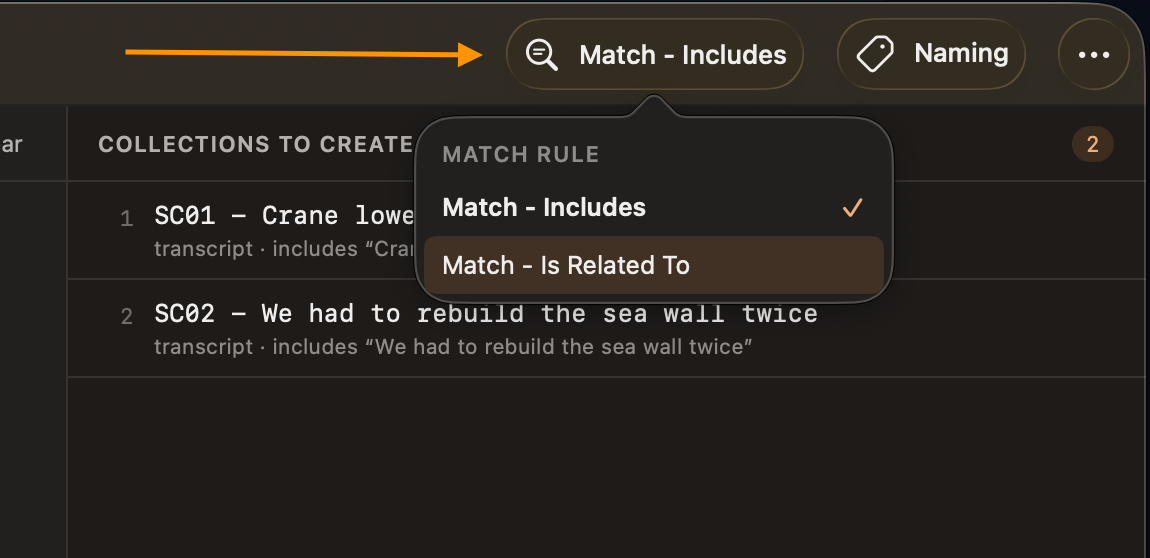
Click the Match button in the toolbar and pick the rule every collection will use.
The transcript contains your line, word for word. Precise; best for quotes lifted from a script.
rule="includes"
Final Cut Pro’s looser match, which also catches word stems and near variants. Better for topics.
rule="isRelatedTo"
The rule applies to every collection in the list. To mix rules, save once with each.
Set up naming
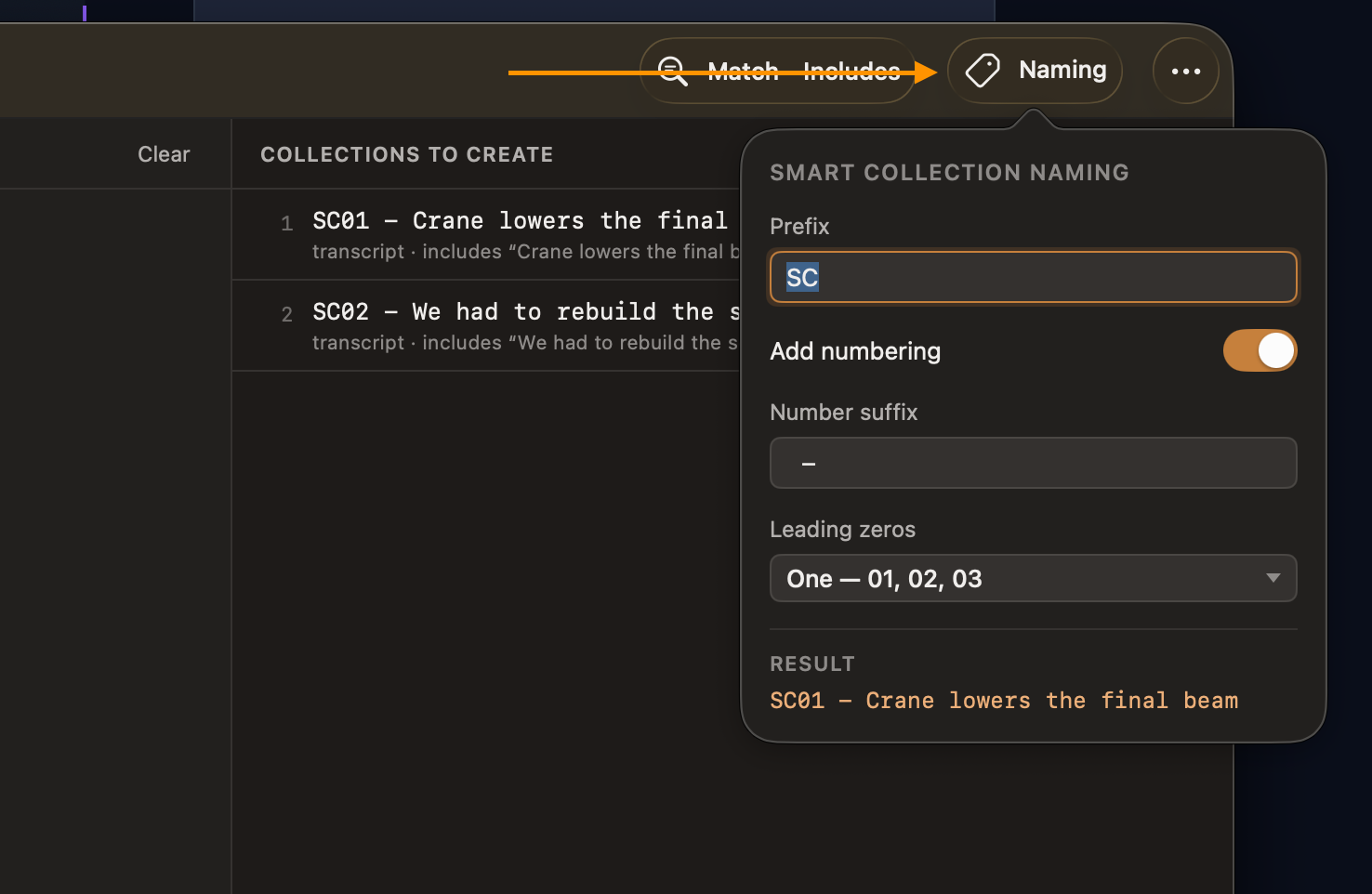
Click Naming to decide how the collections are named in Final Cut Pro’s browser. Each name is built from up to four parts:
SCPrefix01Number - SuffixCrane lowers the final beamYour note= SC01 - Crane lowers the final beam
The Result line in the panel previews the first name. Your naming choices are kept for next time.
Save a copy
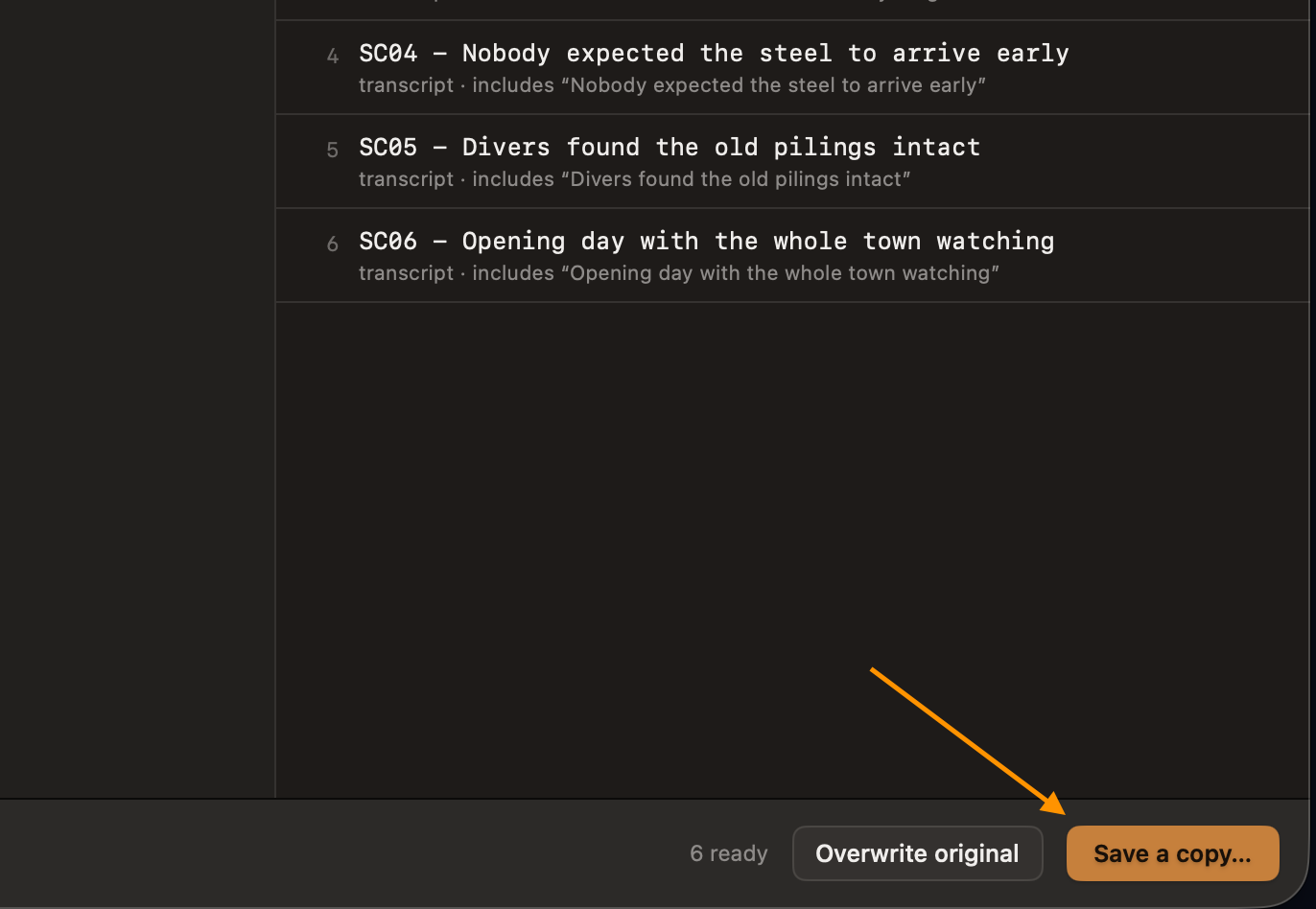
When the footer says how many collections are ready, click Save a copy… (⌘S). The save dialog opens in the original’s folder and suggests a name such as 29-8-2026 — synced.fcpxmld. The new file holds the event plus your new collections.
A bundle is saved as a new bundle, with the media inside it copied along. Your original isn’t touched — once the copy is saved, the footer status reads Original untouched.
Or overwrite the original
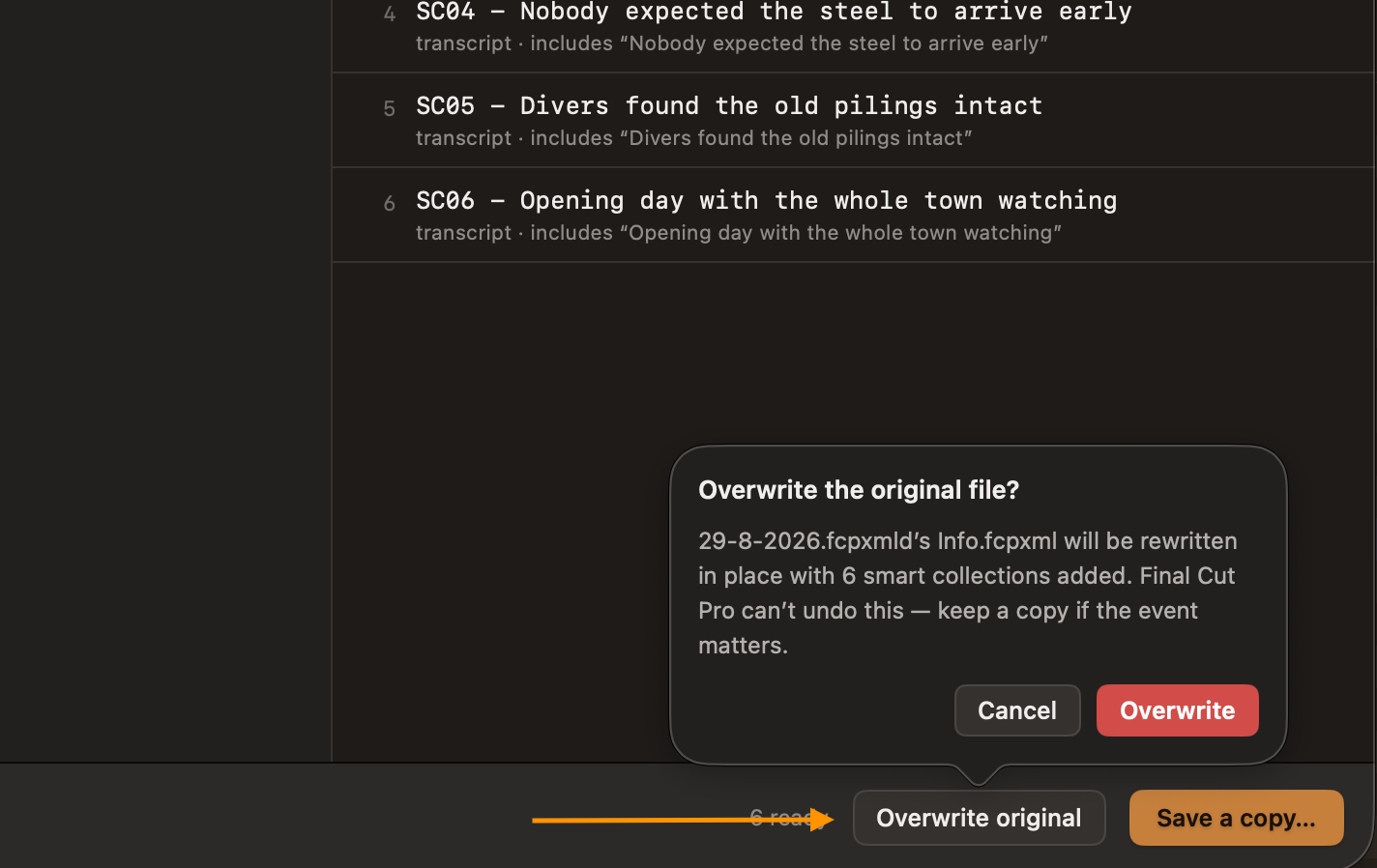
Overwrite original rewrites the file you loaded instead of making a copy. It asks first, naming the file and the number of collections, because Final Cut Pro can’t undo it.
For a bundle, only the Info.fcpxml inside it is rewritten; the media is left as it is. Press Esc or click Cancel to back out.
Import it into Final Cut Pro
Back in Final Cut Pro, choose:
- File
- Import
- XML…
Pick the file you just saved. The event comes in with one smart collection per line of notes; select a collection to see the clips whose transcripts match it.
What’s added for each line
One <smart-collection>, added to the event. Your clips, projects and any collections already there are left as they are.
<event …>
    <!-- your clips, unchanged -->
    <smart-collection name="SC01 - Crane lowers the final beam" match="all">
        <match-text rule="includes"
                    value="Crane lowers the final beam"
                    scope="transcript"/>
    </smart-collection>
    <smart-collection name="SC02 - We had to rebuild the sea wall twice" match="all">
        …
    </smart-collection>
    <!-- …one per line of notes -->
</event>
Around the app
Shortcuts, appearance and help
The ··· menu
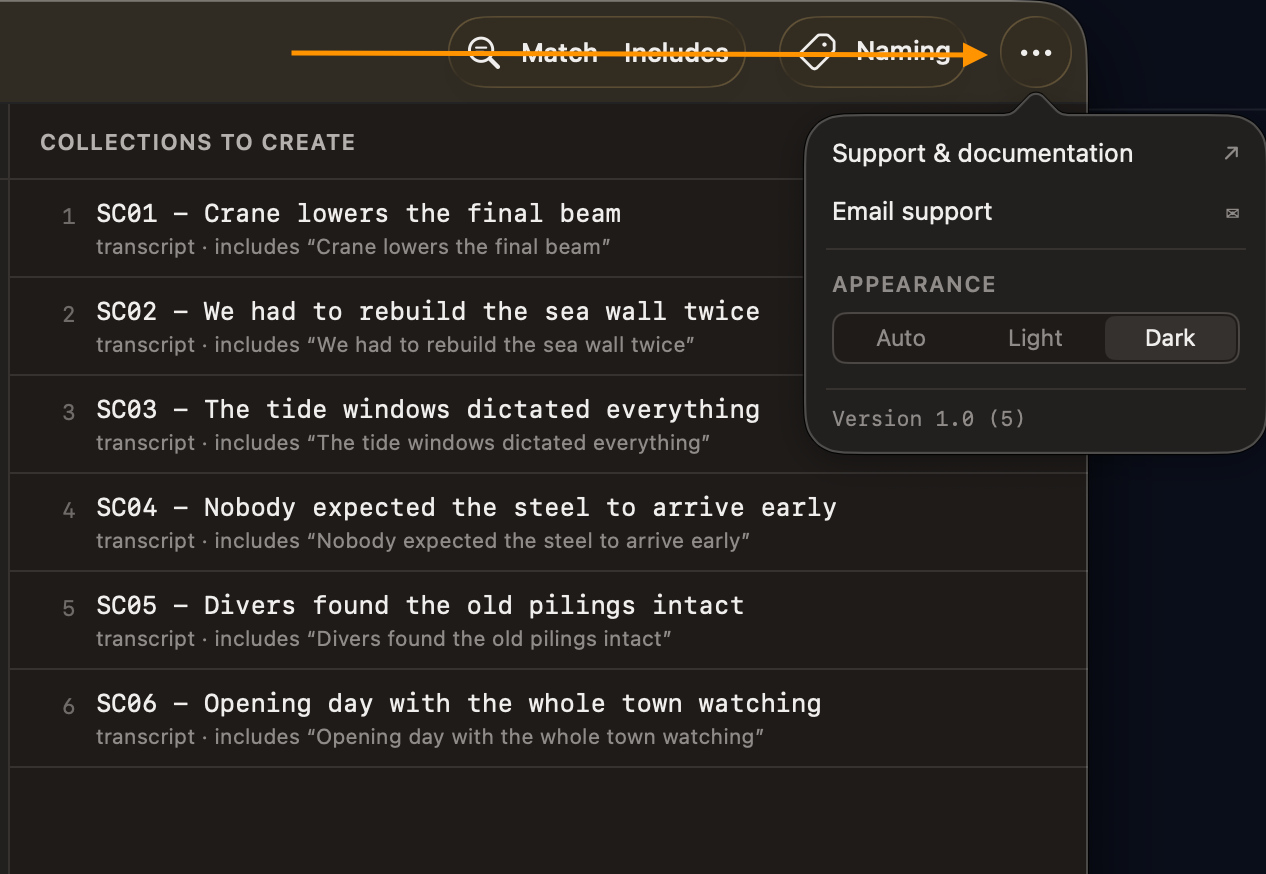
The ··· button at the right of the toolbar opens this guide (Support & documentation) and email support. It also has the appearance switch — Auto follows macOS, or choose Light or Dark — and shows the version you’re running.
Keyboard and mouse
- ⌘OChoose an event to load, while none is loaded
- ⌘SSave a copy…
- ⌘?Open this guide
- EscClose a panel, or cancel Overwrite
- Drag & dropDrop an event anywhere in the window to load it
Troubleshooting
When a file won’t load
If a file can’t be used, a red banner under the toolbar says why. The event you had loaded before stays loaded, so a wrong drop costs nothing. Click Dismiss once you’ve read it.
The Save a copy… and Overwrite original buttons stay greyed out until there’s both a loaded event and at least one line of notes.

| The banner says | What to do |
|---|---|
| fcpxml version 1.9 isn’t supported. Re-export as version 1.14 or later. | The file uses an older format. Export the event again from Final Cut Pro, choosing XML version 1.14 or later. |
| No <event> found in this file — drop an exported event, not a single project. | A project was exported on its own. Select the event in the Libraries sidebar and export again. |
| “…” isn’t an .fcpxml file or .fcpxmld bundle. | Only Final Cut Pro XML exports can be loaded. Use File › Export XML… first. |
| No <fcpxml version="…"> tag found — the file may be truncated. This file isn’t valid XML: … |
The file is empty, incomplete or damaged, often from an interrupted export or copy. Export it again. |
| “…” contains no Info.fcpxml — the bundle looks incomplete. | The bundle is missing its XML. Export the event again. |
| Couldn’t write to … — macOS denied permission. Use “Save a copy…” instead. | macOS didn’t allow the app to write there. Save a copy to a different folder, or load the file again and retry. |
FAQ
Questions editors ask
Will it change my original event?
Not unless you choose Overwrite original and confirm. Save a copy… always writes a new file, and nothing changes in your Final Cut Pro library until you import that file.
Why does it need FCPXML 1.14 or later?
Smart collections that search transcripts were added to the format in version 1.14. An older file would accept the collections, but they would never match anything, so the app stops you before you get that far.
My file has several events. Which one gets the collections?
The last event in the file. The footer shows how many events a file holds; to target a particular event, export just that one.
Does it work with .fcpxmld bundles?
Yes. Load the bundle just like a file. Save a copy… makes a new bundle and copies the media inside the original along with it.
I changed the event after loading it. Why don’t I see the changes?
The app works from a snapshot taken when you load the file. Export the event again from Final Cut Pro and drop the new file in.
Can my notes contain quotes, ampersands or other punctuation?
Yes. Type them as they are. The app takes care of the XML, and the preview shows each name exactly as Final Cut Pro will.
Are my settings and notes saved?
Your naming options and appearance choice are remembered between launches. Notes aren’t saved, so keep your script somewhere else too.